An AI assistant could be the best tool in your box
No, it’s not about AI doing your job or stealing your livelihood. For once, it could be a good news story about an AI assistant actually helping you to get organized.
Well, at least that’s the sales pitch. I’m trying to prove the concept, and so far it’s going well. But will it keep up the pace under pressure? Only time will tell.
How is it helping?
I’m a relatively new user of AI assistants, and I went into the world of AI as a skeptic. Which is my default mode: Question everything — believe nothing — until it proves itself in front of your eyes and can be explained.
We’re led to believe that AI can do everything! I’m of the belief it can’t do anything unless it’s told to do something. Kind of like a dog: you feed it with information, and then it performs tricks based on that.
If you ask it a question, it’s not sitting there honing its inner thoughts. It’s scraping the web and its large, human-fed database for answers that match your query — all dressed up in smart language to make it seem like a conversation.
I’m not trying to run it down; I happen to think it’s cool, and it’s grown on me. It can be a fast way to find and collate simple information. But the problem is this information isn’t guaranteed to be accurate. It’s the world wide web, after all, which is littered with misinformation.
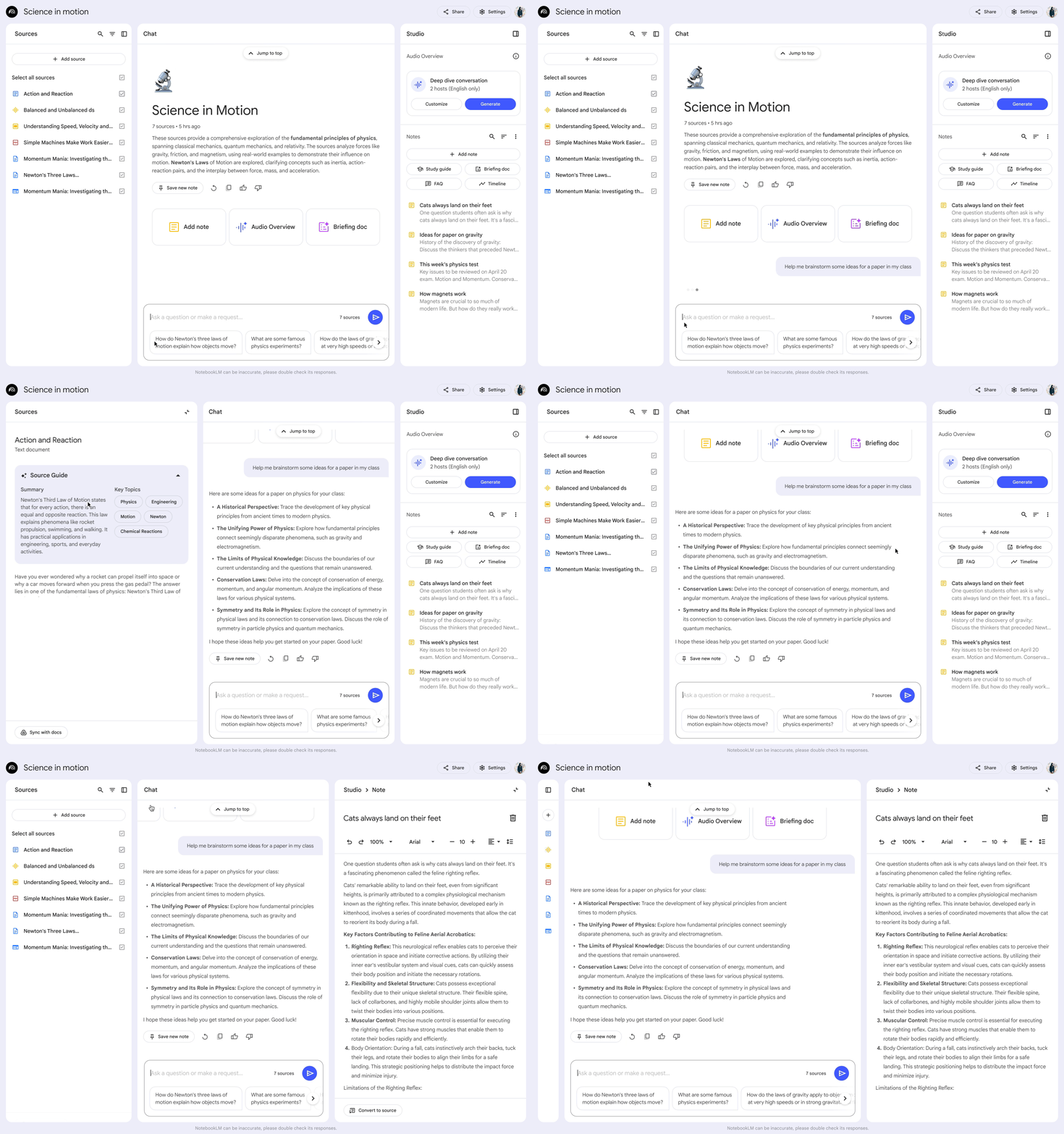
So, how do we make this a useful tool?
My AI assistant of choice is Gemini. The main reason for this was ease of use: it’s tied to my Google account, so Google Drive and my other apps work natively with it. That’s how they get you, I guess!
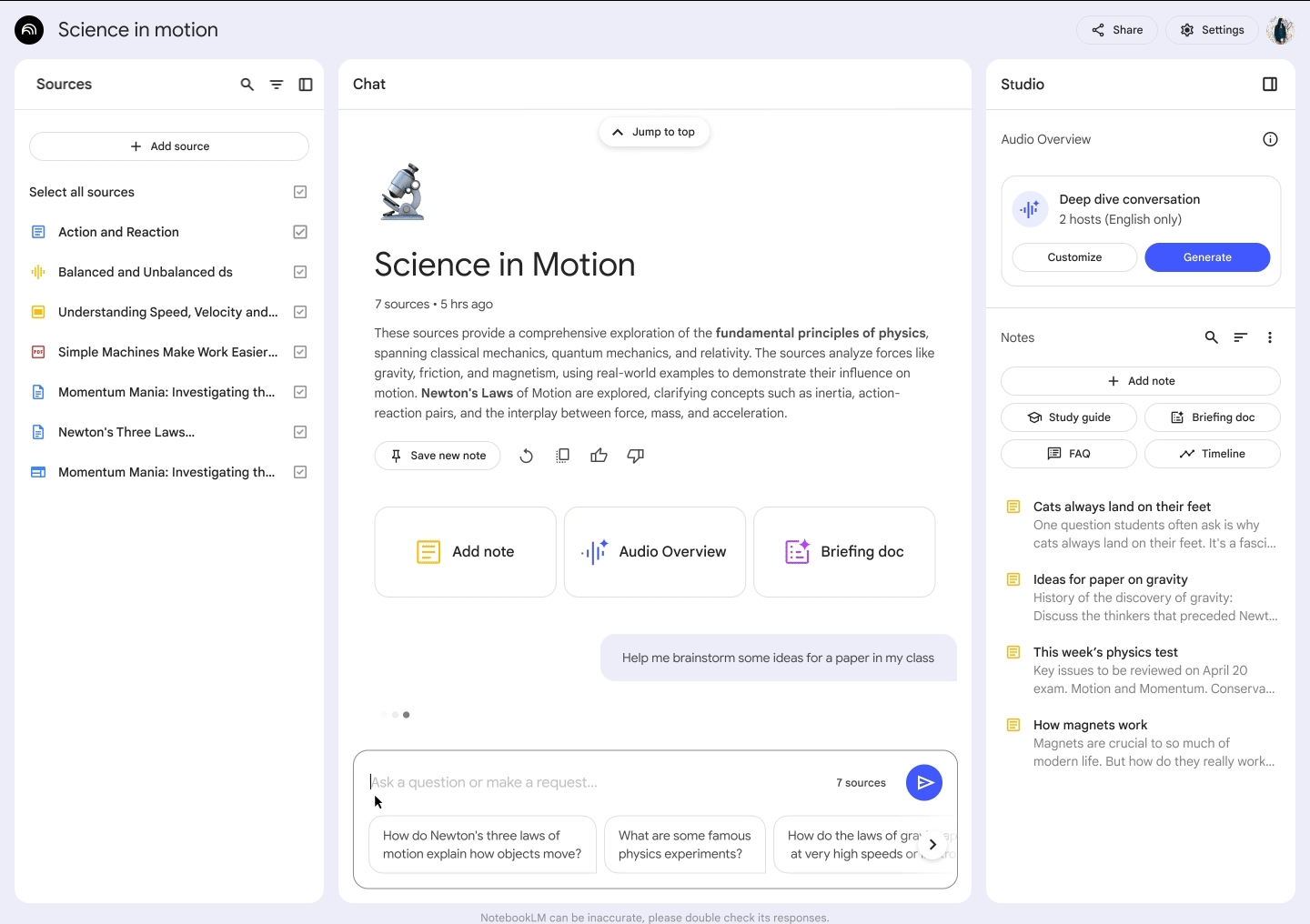
Alongside standard Gemini, there is Gemini Notebooks (also known as NotebookLM). This is where we can store accurate information in the form of notes, TSBs from PDFs, web links, or live Google Docs directly from Google Drive.
Basically, here is how it works: we create a notebook — let’s call it Diag Notes. In that notebook, we attach notes, links, or videos related to that specific topic. Because this is information you collected yourself, you know you can trust it. Now, when you search for a diagnostic fault or technical spec, it returns answers based only on your verified data. No more reading a load of half-baked forum posts or speculation when all you need is correct factory data.
Some restrictions to keep in mind
There are, of course, a few limits to keep in mind. Depending on your plan, each notebook has a source limit (often up to 100 sources), which includes document uploads, web links, and drive files. There are also per-file size ceilings on heavy PDFs, though you can easily work around them.
So if — like me — you were thinking of just uploading every single note and file you have into one giant catch-all notebook, beware: it doesn’t work well that way.
Honestly, sitting down and dividing your notes into concentrated areas pays off in the long run. Ask me how I know! Having one notebook dedicated to EGR systems and another dedicated to ABS braking proves much more focused and leaves plenty of room to add new files or TSB’s as they inevitably become available.
A quick tip if you’re getting started: Plan your notebook topics before uploading everything. Because you can’t easily drag and drop files between notebooks once uploaded, taking five minutes to set up dedicated containers (e.g., Braking Systems, Fuel Systems, Electrical TSBs) saves you from having to re-upload files later.
Watch out for heavy, image-laden TSB PDFs. If you hit a file-size wall with a graphic-heavy bulletin, don’t throw it out. Copying the text into a plain .txt document or a Google Doc gives you 100% of the factory diagnostic logic, specs, and DTC descriptions in a file that’s a fraction of the original size.
Why the Google Sync Wins
If you’ve ever dealt with heavy factory service PDFs, you know they can be absolute file-size hogs, loaded down with full-resolution graphics, uncompressed schematics, and rendering bloat. Try uploading a stack of those, and you’ll hit a wall pretty quickly.
Here is the workaround I stumbled onto that completely changed my setup: Google Docs.
Instead of wrestling with a 200MB PDF, I copy the text into a Google Doc and use a screenshot tool to grab the relevant scope waveforms, wiring schematics, or pinout tables. Now, that massive PDF turns into a clean, lightweight 2MB Google Doc that uploads in seconds.
But here’s the real kicker, and the reason staying inside the Google ecosystem makes sense here: when you link a Google Doc to a notebook, it becomes a live source file.
Six months from now, when you encounter a weird issue or failure on that same system or come across a fresh TSB, you don’t need to create a new file or burn through upload limits. You just paste the new info into your existing Google Doc, open NotebookLM, and hit Refresh Source. Or just refresh the page, I did notice that the Refresh Source option didn’t always pop up.
The AI updates its knowledge base instantly. No managing twenty different file versions, no creating extra accounts, and no clutter — just one focused document that grows alongside your real-world shop experience.
What does the future hold?
At this point, I’ve only scratched the surface. I’ve used it in the workshop, but I’m still adding information and getting familiar with how it behaves under real pressure. So far in testing, it has performed admirably, and I can’t wait to put it to work on a real stinker of a diagnostic job.
In a previous post, I talked about keeping notes while diagnosing vehicles and wondered if there was anything better than a pen and paper notebook. While I still love that traditional approach, NotebookLM feels like a natural extension of it.
I don’t intend to give up paper notes anytime soon — NotebookLM will simply be a companion to them. I’ll add my handwritten notes right into the notebook as a source, either by photo or PDF via Google Drive.
Leave a Reply
You must be logged in to post a comment.